Installment repayment guide
Follow these steps to open an active application, choose your bank or get a QR code, and pay your installment.
Installment payment guide in the OGOGO app
Follow the steps below to pay your installment.
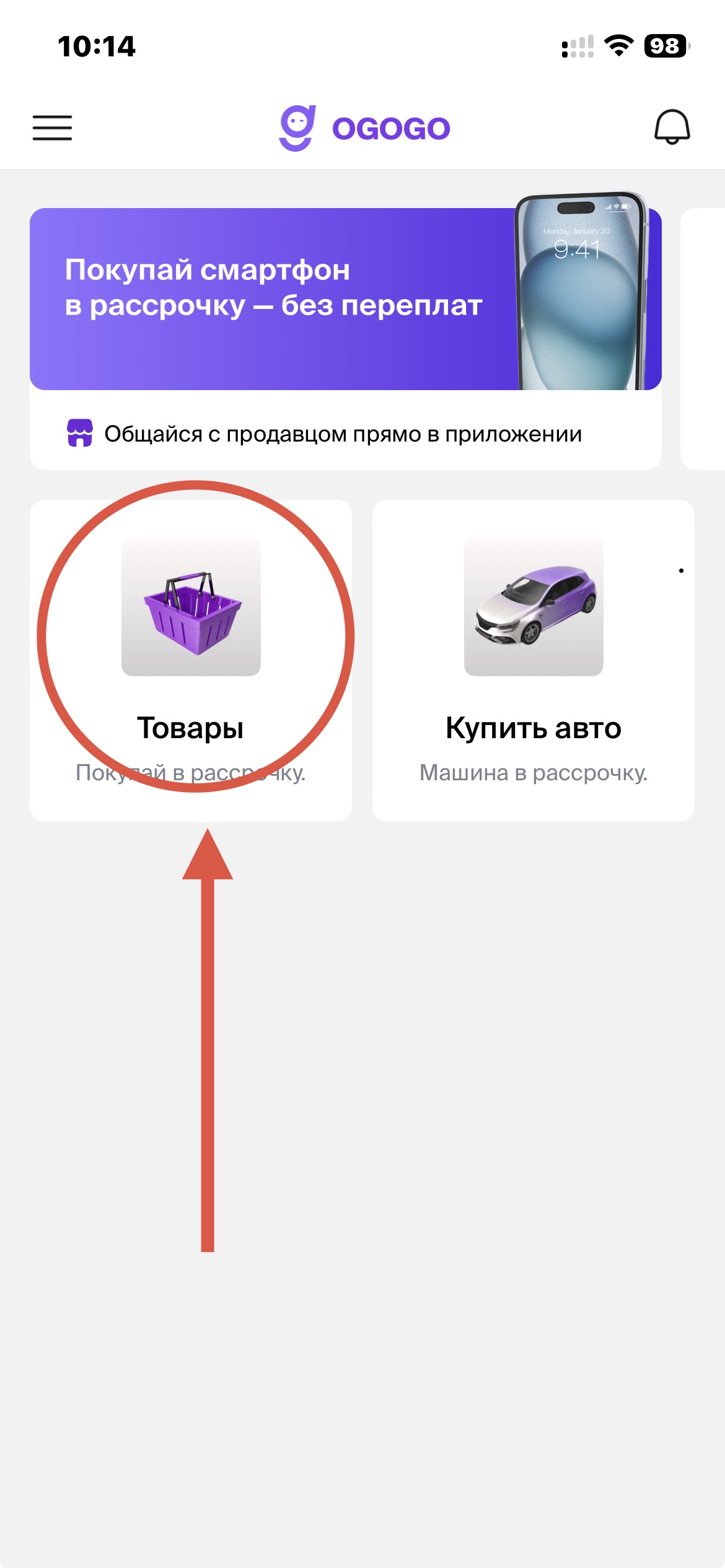
0. Home screen
On the home screen, tap Products.
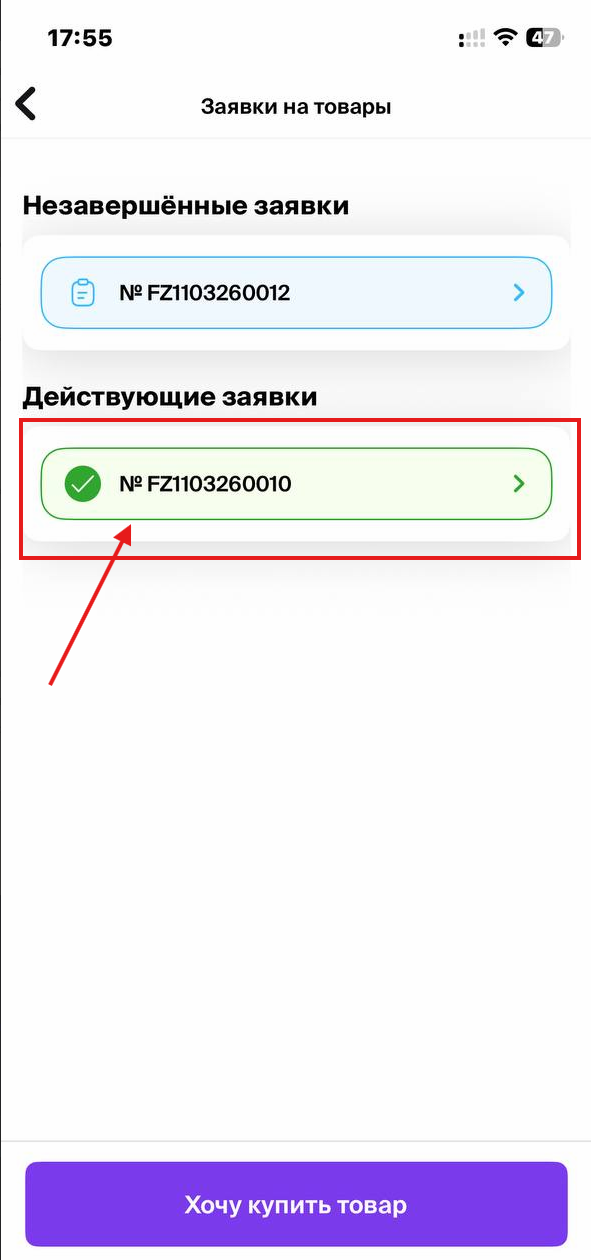
1. Select the application
Go to the Applications section. When the application status changes to Active, the application card will turn green.
Tap that application.
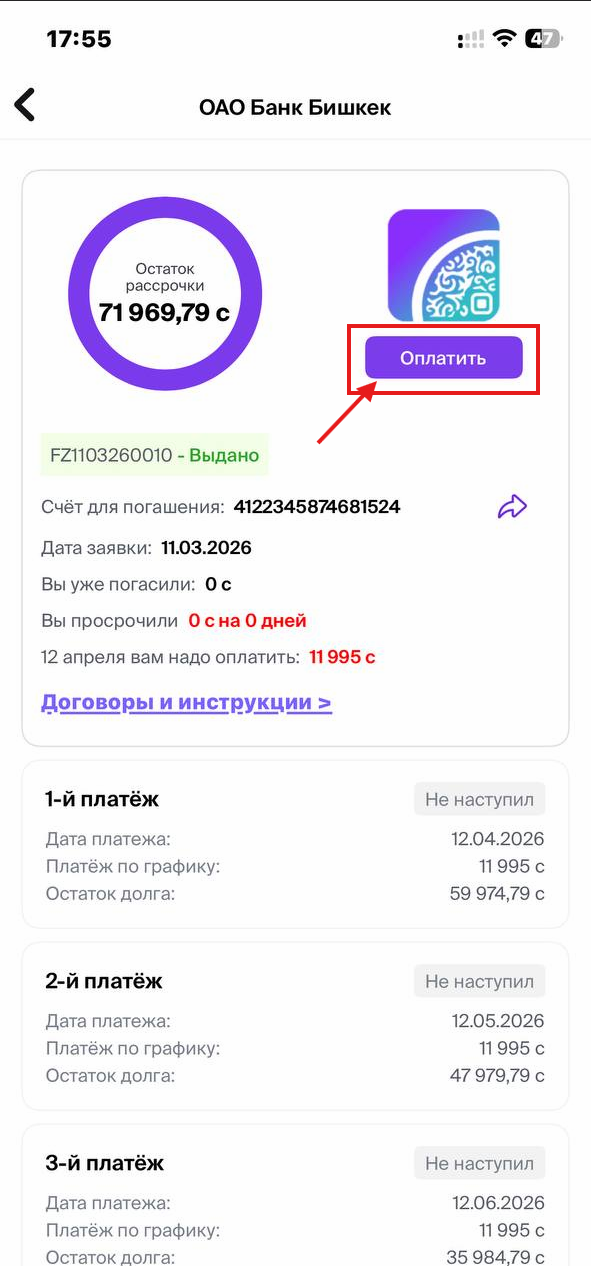
2. Go to payment
Inside the application, tap the Pay button in the top-right corner.
3. Choose a payment method
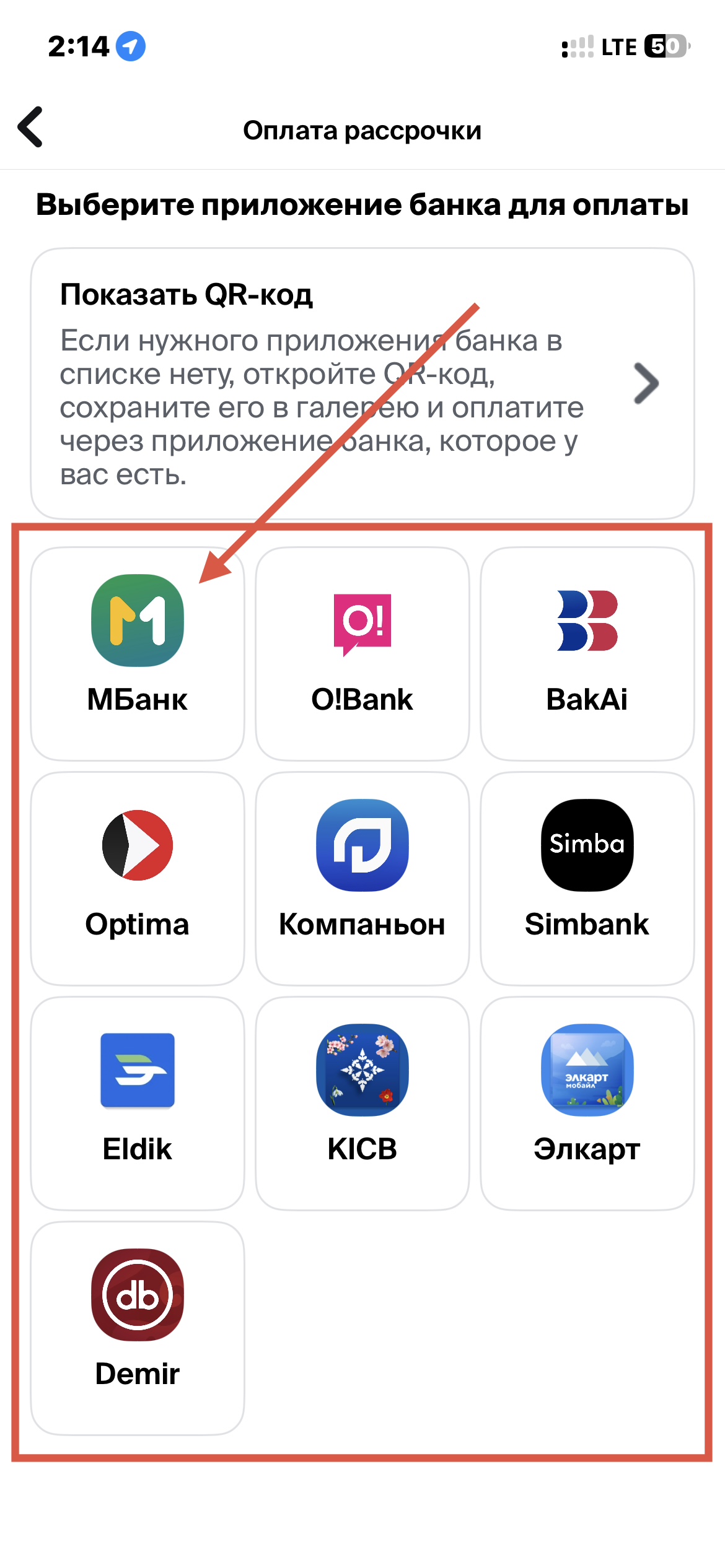
After you tap Pay, a list of available banks will open.
Here you can:
- choose a bank from the list — OGOGO will automatically redirect you to the payment screen in the selected bank’s app;
- or get a QR code to complete the payment manually.
4. Pay through your bank’s app
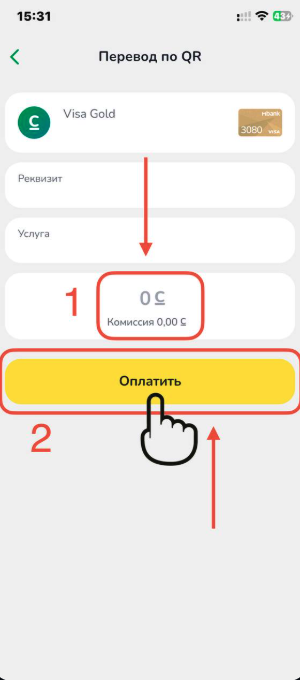
Choose a bank from the list. OGOGO will automatically redirect you to the payment screen in the selected bank’s app.
After the app opens, enter the payment amount and tap Pay.
Rare fallback method
Only if your bank’s app is not listed
In most cases, you do not need the steps below. Use the QR code payment method only if you could not find your bank’s app in the previous step.
5. Get the QR code
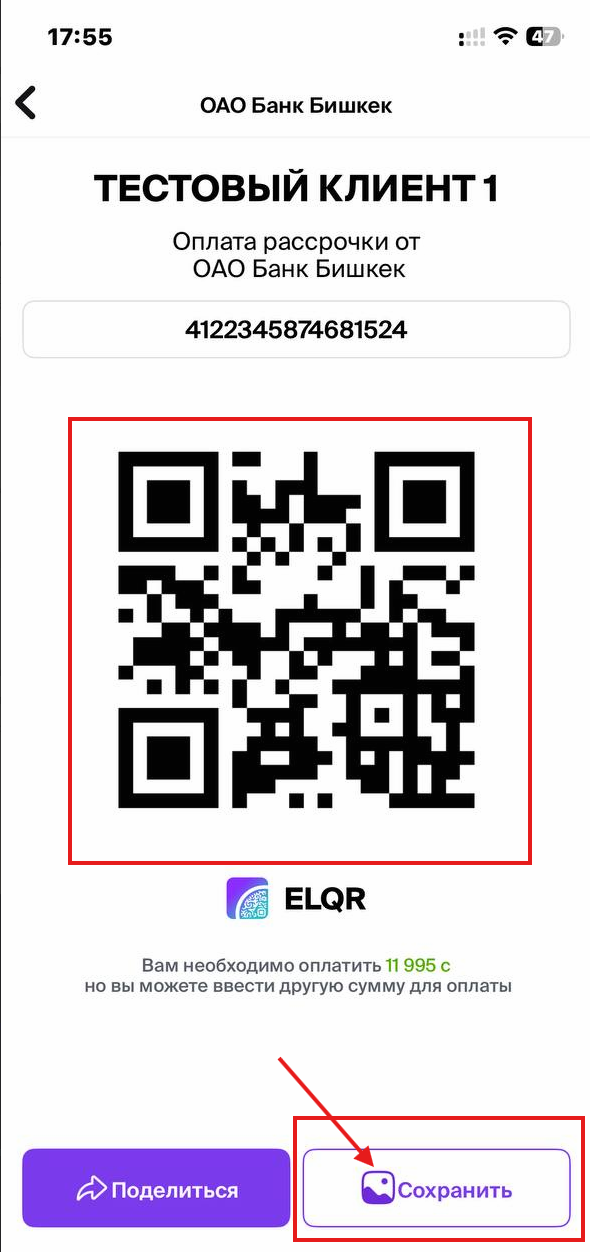
If you choose the QR code option, a QR code will appear on the screen.
At the bottom of the screen, choose:
- Save
- or Share
6. Save the image
After you tap Save, the QR code image will be saved to your phone gallery.
7. Pay by QR code through a banking app, for example MBank
- Open your bank's mobile app.
- Choose payment by QR code.
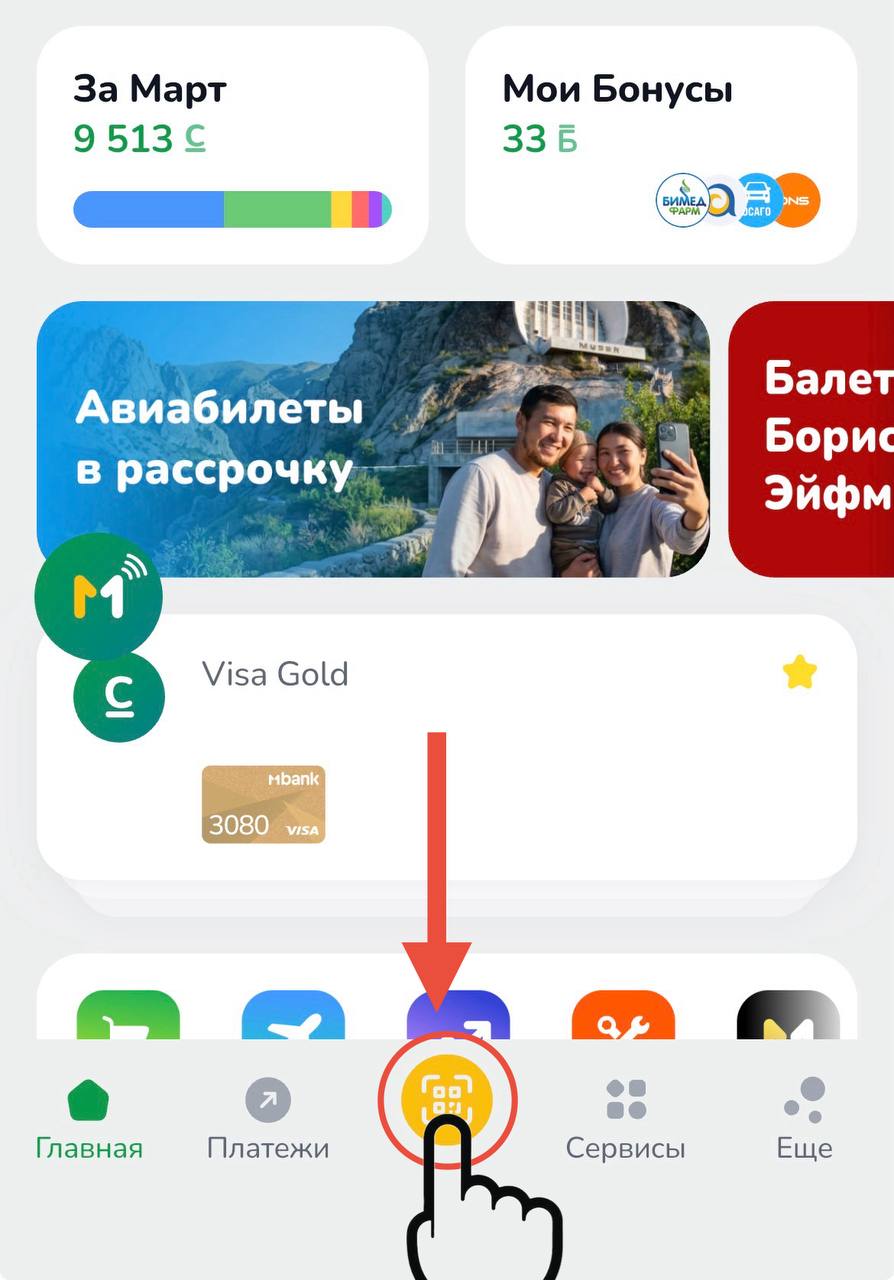
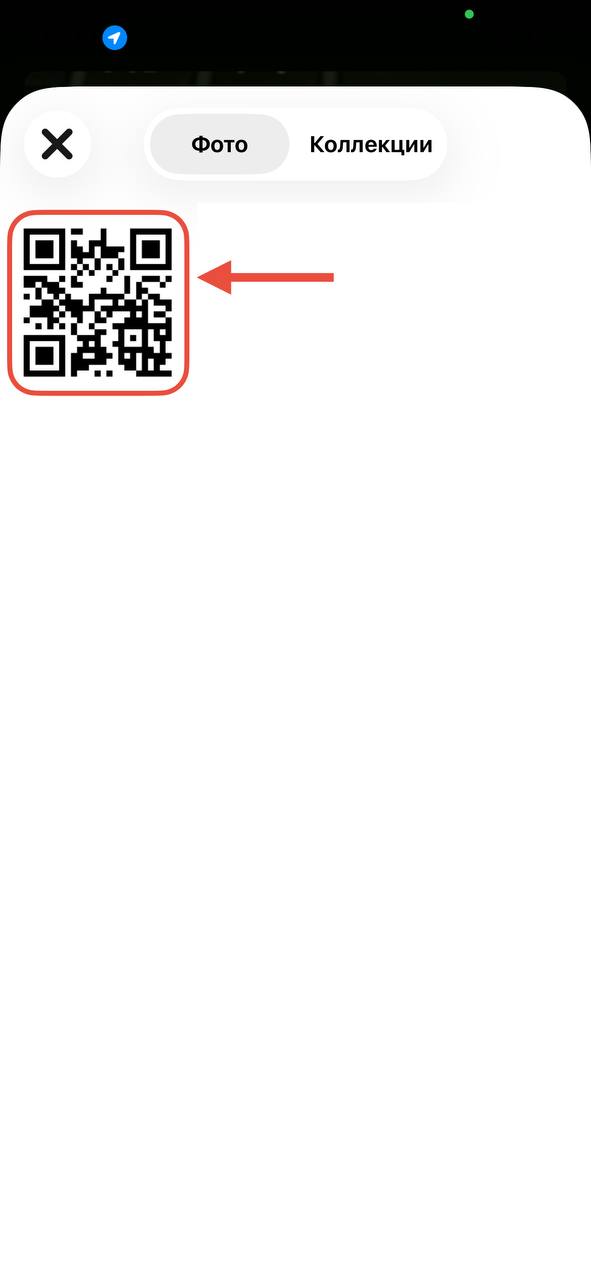
- Choose the From gallery option.
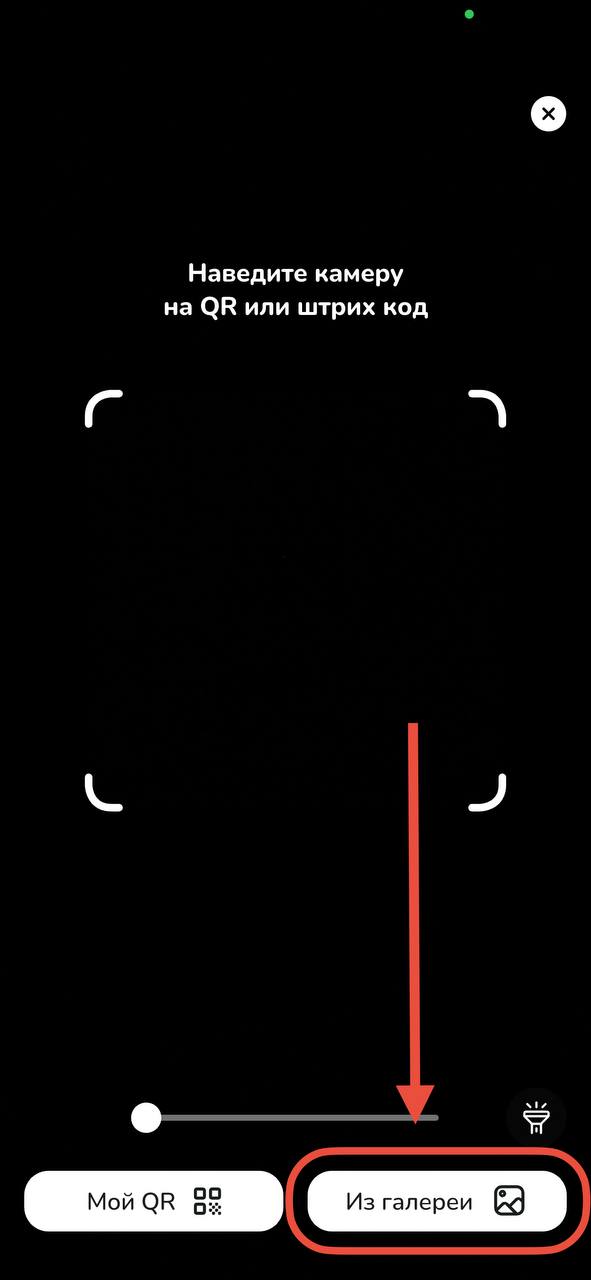
- Upload the saved image from your gallery.
- Enter the payment amount and complete the payment.
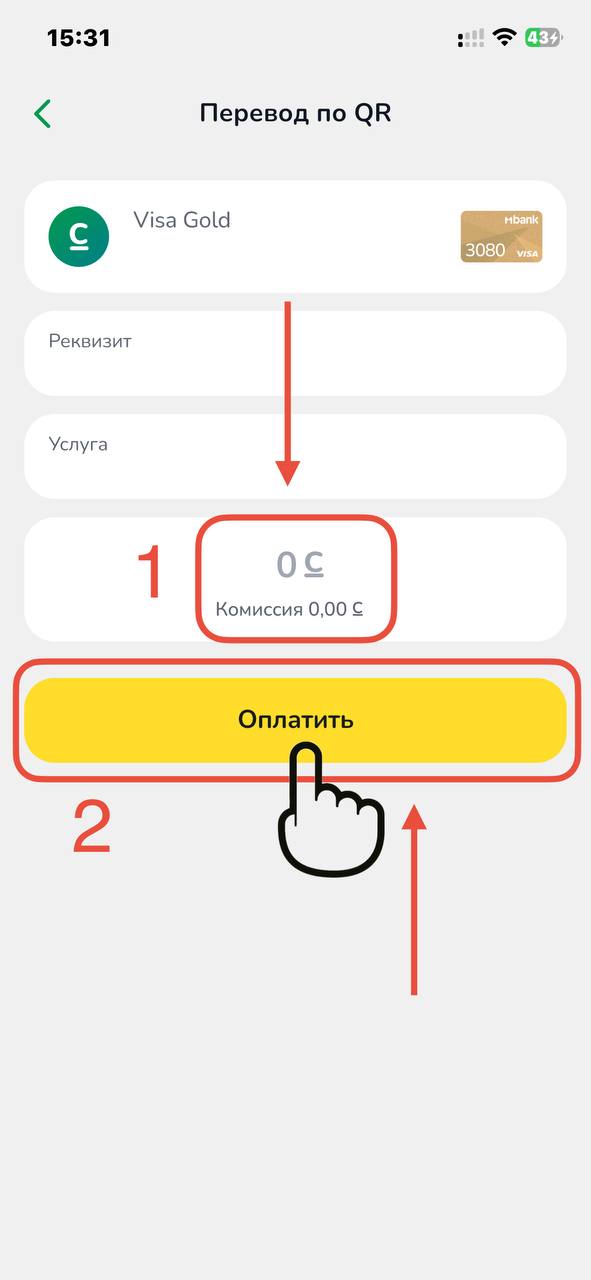
After the QR code is scanned, confirm the payment in your banking app.